Dec 4th Goleta City Council on Scooter Share
&& [ other ] && 0 comments
I attended and spoke at the December 4th Goleta city council meeting at which they brought forward an urgency ordinance to ban the operation of on demand scooter sharing services (Lime, Bird) in the city of Goleta.
There were 34 speaker slips submitted and the meeting did not end until 10:30pm. Public comments appeared to be split 50/50 in favor/opposition to the ban. I do take some issue with the business practices of Bird and Lime but I believe the benefits of scooter sharing programs outweigh the cost.
There were many other speakers more eloquent and prepared than I that spoke to the social, economic and environmental benefits to transportation alternatives, so I kept my time short. Here’s what I said as best as I can recall:
Good evening council members, thanks for having me.
I live in Isla Vista and work just around the corner here. I do occasionally, when I’m too lazy to ride my bike, take a Bird to work. If you’re looking for someone to blame for the Bird invasion of Goleta, I’m definitely a case.
I’d like to speak to some of the perceived hazards of the scooters. First, is the supposed danger of them. They can’t be any more dangerous than bicycles, and as some of the first responders here can attest, certainly no more dangerous than cars, which kill 20,000 Americans a year.
The other is this idea that they are somehow visually offensive. I live on a street with street parking and when I leave my house in the morning I certainly don’t appreciate having to see someone’s 6 inch lifted Ford F-650 parked out front nor do I like to see a Prius covered in kombucha and yoga stickers. See all of this is relative and I think what we’re seeing is a knee jerk reaction.
I do think these companies need to be regulated, but I don’t think they should be banned outright. So I ask you please do not do anything rash.
Thank you.
In the end, to nobody’s surprise, the ordinance to ban scooter share companies passed.
Reliable California Wildfire Information
&& [ other ] && 0 comments
November is wildfire season in California, and this year has been no exception. Just when we thought it couldn’t get worse than 2017 / 2018, it did.
Unfortunately it can be super hard to get good information about wildfires while they are happening. This is mainly due to every local news station eagerly exploiting tragedy for readership. Googling a fire returns pages of poorly and hastily written articles that contain, at best, out of date information (but plenty of shocking cell phone video) and at worst no information at all.
If you are in danger of wildfire, you should always follow the direction of your local emergency agencies.
If you’re one of the other 40 million Californians that just want get some straight information about fire boundaries, conditions and smoke without all the hysteria and FUD, here are some official and reliable sources:
InciWeb

InciWeb is an incident information system provided by the National Wildfire Coordinating Group (NWCG). Basically, it aggregates the latest information about wildfires directly from the local agencies that are in the affected area.
The site provides basic information, the current situation, outlook and latest reports from the commander(s) on the fire. This is the most reliable place to get information such as cause, location, size, containment, as well total personnel and estimated containment dates.
I guarantee InciWeb is where 99% of all local news companies get their information. Skip the middleman.
National Fire Situational Awareness Map

The National Fire Situational Awareness Map is an interactive map that overlays data directly from infrared satellites that can detect fire from orbit. This data is used to make a map that very accurately shows where fires are burning at any one moment. It also displays historical burn areas. Absolutely the best way to see where and how hot a fire is burning. This service is also provided by the NWCG.
NASA EOSDIS Worldview
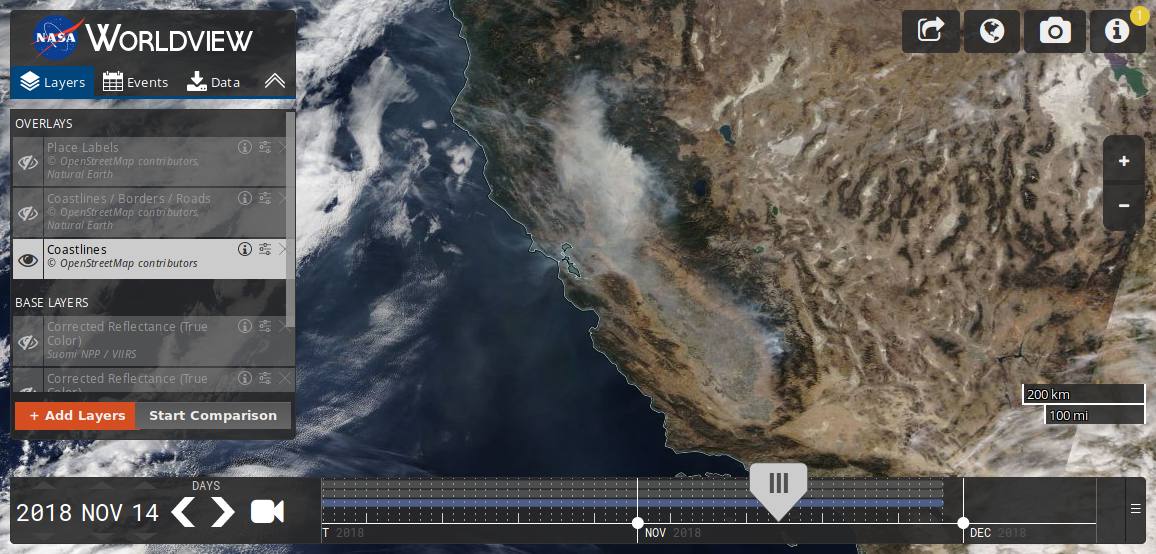
Wile not specific to wildfires, Nasa’s Worldview application is another interactive map that shows near realtime satellite images of the earth as quickly as 3 hours after observation. This is very similar to the National Fire Situational Awareness Map except that it displays it’s data in the optical instead of infrared, and it allows you to go back in time. This is super useful for viewing current air quality conditions and tracking smoke as it moves across the state (and country). An amazing resource provided by the good folks at NASA.
Those are my go-to’s. Do you have other resources you use during wildfire season? If so, let me know in the comments!
Simple Virtualenv Auto Activation With ZSH.
&& [ linux ] && 1 comments
Since I moved from fish to zsh, one of the main things I missed was virtualfish. I’m not sure how any serious python developer lives without auto activation, as in automatically activating the virtualenv for your project when you open a terminal or cd to it.
Here is a script you can use to achieve auto activation. It doesn’t require
virtualenvwrapper, pyenv, or anything like that. Just use python3’s built in
python -m venv to create a virtualenv in ~/.virtualenvs/, use the provived
venvconnect function to connect the activated env with the current directory,
and you’re done.
#!/bin/zsh
#
# Auto activate a python virtualenv when entering the project directory.
# Installation:
#   source virtualenv-auto-activate.sh
#
# Usage:
#   Function `venvconnect`:
#       Connect the currently activated virtualenv to the current directory.
#
VENV_HOME=$HOME/.virtualenvs

function _virtualenv_auto_activate() {
    if [[ -f ".venv" ]]; then
        _VENV_PATH=$VENV_HOME/$(cat .venv)

        # Check to see if already activated to avoid redundant activating
        if [[ "$VIRTUAL_ENV" != $_VENV_PATH ]]; then
            source $_VENV_PATH/bin/activate
        fi
    fi
}

function venvconnect (){
    if [[ -n $VIRTUAL_ENV ]]; then
        echo $(basename $VIRTUAL_ENV) > .venv
    else
        echo "Activate a virtualenv first"
    fi
}

chpwd_functions+=(_virtualenv_auto_activate)
precmd_functions=(_virtualenv_auto_activate $precmd_functions)
Source the above script in your ~/.zshrc and you should get auto activation of
python virtualenvs.
A Piece of Trash a Day
&& [ earth, other ] && 0 comments
The lines we make in our day to day lives. Placed on a heatmap of all our motion, our daily routines show up in blazing hot purple. We ride down the same streets on our way to work, walk the same sidewalks to get the groceries, wander familiar shorelines on sunset strolls.
One thing I notice on a daily basis is trash. At it’s best litter is a faint reminder of civilization’s negative impact on the landscape. At it’s worst it’s an immediate and unwelcome distraction from the moment’s thoughts or reveries.
I wonder: considering how often I travel the same paths, can one person simply picking up a piece of trash a day make a noticeable difference in the amount present? I suspect so, as the places I walk aren’t particularly polluted and I do travel them quite often.
So I begun today by picking up a broken pair of safety glasses and a 5 hour energy drink, both on the side of the sidewalk I pass during my lunch walk, and that I had been noticing for at least the last month. The walk has been improved already.
Tomorrow: Dorritos bag.
Tuimoji: A terminal based emoji picker
&& [ linux ] && 0 comments
Tuimoji is a terminal (text) based emoji chooser, similar to gnome-characters, but with less suck. 🔥🔥💻🔥🔥
I wrote tuimoji because searching for the appropriate emoji always seemed cumbersome and was one of the least optimized portions of my workflow. Welcome to my life.
As of now it only supports Linux. It requires python3 and xclip to be installed.
You can install it using pip:
pip3 install tuimoji
There is also a package available on the Arch Linux AUR.
The sources, as usual, are available on Github.
Customizing grml-zsh-config
&& [ linux ] && 0 comments
Ever heard of grml-zsh-config? Maybe not, but it’s possible you may have used it. It’s the zsh config for the Arch linux installer, as well as some Debian systems.
Grml is a nice alternative to heavy and bloated config frameworks like oh-my-zsh and pretzo (even on a modern machine I’ve seen zsh take over a second to load using oh-my-zsh with just a few plugins enabled).
Unfortunately, grml is not that easy to configure, and the available documentation is a little lacking. With a few tweaks though, I managed to get a proper shell out of grml.
Grml provides almost everything I’d like out of zsh by default. Here’s the out of the box prompt:
{{< highlight shell >}}
austin@nightmare ~/Documents/pdpv2 (git)-[master] %
{{< / highlight >}}
Not bad, but room for improvement. Let’s make some changes. All code below belongs
in your .zshrc
Change the prompt layout.
There are a few items in the prompt that make it unnecessarily long and redundant.
I don’t often forget who I am or where I’m at, so let’s remove the user@host
nonsense. I also like my prompt to contain a newline, so input is consistently
placed on the far left.
{{< highlight shell >}}
zstyle ':prompt:grml:left:setup' items rc change-root path vcs newline percent
{{< / highlight >}}
Now you’ll end up with something like this:
{{< highlight shell >}}
~/Documents/pdpv2 (git)-[master]
%
{{< / highlight >}}
Better git information.
It’d be nice to see if there are any unstaged/staged changes in the current
working directory. While we’re at it, let’s get rid of the lame (git)- part of
the prompt. Nobody uses svn anymore, right?
Place this above the zstyle ':prompt:grml:left:setup' line in your .zshrc:
{{< highlight shell >}}
autoload -U colors && colors
zstyle ':vcs_info:*' enable git
zstyle ':vcs_info:*' check-for-changes true
zstyle ':vcs_info:*' unstagedstr '!'
zstyle ':vcs_info:*' stagedstr '+'
zstyle ':vcs_info:git*' formats "%{${fg[cyan]}%}[%{${fg[blue]}%}%b%{${fg[yellow]}%}%m%u%c%{${fg[cyan]}%}]%{$reset_color%}"
{{< / highlight >}}
This will load only git support, check for changes in the working directory and add some icons to the prompt if there are changes. It also gets rid of the vcs type display and adds some pretty colors. Your prompt should look something like this now:
{{< highlight shell >}}
~/Documents/pdpv2 [master!]
%
{{< / highlight >}}
Add the current virtualenv.
Every self respecting python developer wants the currently activated virtualenv to appear in their prompt. Due to the way grml configures itself virtualenv’s normal mechanism does not work. Here’s how with grml. In your .zshrc:
{{< highlight shell >}}
source /usr/bin/virtualenvwrapper.sh
function virtual_env_prompt () {
    REPLY=${VIRTUAL_ENV+(${VIRTUAL_ENV:t}) }
}
grml_theme_add_token virtual-env -f virtual_env_prompt '%F{magenta}' '%f'
{{< / highlight >}}
Lastly, add the new virtual-env token to the layout:
{{< highlight shell >}}
zstyle ':prompt:grml:left:setup' items rc change-root path virtual-env vcs newline percent
{{< / highlight >}}
You should end up with something like this if in the “testenv” virtualenv:
{{< highlight shell >}}
~/Documents/pdpv2 (testenv) [master]
%
{{< / highlight >}}
Check out the cheat sheet
Grml is a lot more than just a prompt. It adds a bunch of aliases and functions as well. Check out the exhaustive cheat sheet if you’d like to learn more. Enjoy!
ArchLabs Linux Review (and tips)
&& [ linux ] && 0 comments
Today I’m writing a review of the ArchLabs linux distro. Have you ever wanted a badass Arch linux install, complete with an openbox window manager, conky, and dark gtk themes, worthy of the top spot on /r/unixporn? Of course you do, but if you’re anything like me, you’re a busier person than you were when you were 15, and you no longer have the time, or the inclination.
Enter ArchLabs, elite Arch Linux for the lazy:

Installation
To start, the ArchLabs ISO is a bootable live environment, so you can test it out right away. You’ll get a fairly minimal Openbox desktop, with a panel, conky, and some other goodies. Once you decide to install, because why wouldn’t you, the curses based installer will launch in a new terminal:

The installer is amazing, and way easier to use than many of the other fully graphical ones I have used. I am seriously impressed with how simply and easily it’ll bootstrap a system for you, with plenty of options (including LuKS and LVM) but perfectly sane defaults. The entire install took about 5 minutes.
First Boot
Once you boot into your system, you’re greeted with a post-install script, which is also a delight to use:

This post-install script gives you the option to install additional desktop environments, a login manager, nvidia drivers, and some other stuff. Super cool.
Once you’re done with that, you’re asked to reboot one more time (probably only necessary if you’ve chosen to install a login manager or video drivers) and then you’re done, and using your new install.
Fixes
While my first impressions of ArchLabs are that it’s a very well put together distro, there were still some things I needed to fix/tweak once I started actually using it. Theses might come in handy for others, but hopefully they quickly become irrelevant.
Firefox text inputs are unreadable.
The dreaded dark gtk theme/Firefox combo. You’d thing we’d be past this by now,
but alas, not so. Luckily I found
this bug and comment
which suggested adding widget.content.gtk-theme-override to Adwaita:light
in about:config (right click, new, add that key and value).
Audacious can’t play audio streams.
What am I to do without my Defcon radio? This is just due to a missing package:
$ aurman -S neon
No shortcut for locking the screen!
ArchLabs provides a bunch of keyboard shortcuts for all sorts of stuff, but not activating the screen lock. How does that make any sense?
Edit ~./config/openbox/rc.xml and add the following contents to the
<keyboard> section (just place it next to another keybind):
{{< highlight xml >}}
<keybind key="W-l">
  <action name="Execute">
    <command>i3lock-fancy</command>
  </action>
</keybind>
{{< / highlight >}}
There is already a keybind for W-l, one of the many unmaximize ones, delete that one too. Now you can use super (windows key) + l to the lock the screen.
P.S. i3lock-fancy is really cool.
No image viewer
There just isn’t one included at all, oddly enough. Try feh:
aurman -S feh
Dynamic Module Loading in Python
&& [ code, python ] && 0 comments
There are some cases where dynamically loading code that your application doesn’t know about ahead of time can be useful. For example, perhaps you’re writing a text editor and you want it to be extendible via plugins. Or you are writing a library and you’d like your users to be able to provide their own integrations for 3rd party services. In any case, this pattern is very achievable in python.
For this post, let’s write a program that collects the latest top stories from
various news aggregator sites like Reddit, Hacker News, etc. Let’s call it
ubernews.py. We want to make it super easy for anyone who downloads UberNews
to add their own modules for their favorite news sites. So UberNews needs to
be able to access modules which aren’t part of it’s own codebase.
Since UberNews is pretty lame, it’s only going to ship with Reddit support by default. Once we have Reddit working, we’ll write a module for Hacker News (as if we were another developer) and load it into the main application.
First, some requirements. We’ll be making some http calls and
since I’m not a masochist, we’ll be using the requests library, so make
sure you install it into a virtualenv or have access to it globally.
Additionally, we’re going to explore some cool new features of Python 3.7, specifically Data Classes so make sure you are running at least Python 3.7.
Ok, let’s get started with a boilerplate ubernews.py:
{{< highlight python >}}
!/bin/env python3
from dataclasses import dataclass from datetime import datetime
@dataclass class NewsItem(): score: int title: str url: str time: datetime
class RedditNews: def get_news(self): return [ NewsItem(score=1, title=’test’, url=’example.com’, time=datetime.now()) ]
def main(): print(‘Top news for today:’) reddit = RedditNews() for news_item in reddit.get_news(): print(news_item)
if name == ‘main’: main()
{{< / highlight >}}
And the output:
$ ./ubernews.py
    Top news for today:
    NewsItem(score=1, title='test', url='example.com', time=datetime.datetime(2018, 8, 23, 17, 24, 8, 417234))
Let’s go through the members of this module.
First, we have the NewsItem dataclass. If you are not familiar with Python
Data Classes, basically they are syntatic sugar for generating classes with
auto generated methods, like __init__() and __repr__. Here we are simply
using it do define a class with a few attributes, without needing to write
a boilerplate __init__() function. We’ll get into some of the more useful
features of Data Classes later.
Next we have the RedditNews class. It has a single method, get_news().
All it does is return a list of NewsItems, and for now a single, fake one.
Next, our main() function simply prints out a banner message and all of
redditNews’s news items.
Let’s make this program actually do something:
A Not so Dramatiq Change: A Celery Alternative
&& [ code, astronomy ] && 3 comments
Both Celery and Dramatiq are asynchronous task
processing libraries. You’d use them when you want to be able to parallelize Python code,
and you need more than the multiprocess module offers, like persistent distributes queues, automatic
retries, and result handling.
I’ve been using Celery for almost my entire career, and it’s treated me well. Recently I’ve started to become frustrated with it. There have been numerous regressions that have broken my code, as well as some totally inexplicable issues in the last few months (that last one is the reason I started looking for alternatives).
I know Celery is an open source project maintained by volunteers, and I am grateful for all the hard work that has been put into it over the years. I just can no longer in good faith recommend it for new projects.
I recently started a new project of my own in which I need to process and store millions of images of transient astronomical phenomena from a stream of alerts coming from the Zwicky Transient Facility. A perfect use case for a task queue.
Enter Dramatiq: “a distributed task processing library for Python with a focus on simplicity, reliability and performance”. A quick look at the User Guide gives the impression that the library is easy to use.
Setting up Dramatiq is indeed simple. You’ll need a broker though, either Rabbitmq or Redis. I chose Redis as it is in general a kickass piece of software that has many other uses. Unfortunately the Dramatiq docs assume you are using Rabbitmq and it took me some sleuthing to figure out how to hook it up to Redis. Fortunately, it’s pretty easy. To use a Redis broker with Dramatiq:
{{< highlight python >}} import dramatiq from dramatiq.brokers.redis import RedisBroker
redis_broker = RedisBroker(url=f’redis://{REDIS_HOST}:6379/0’) dramatiq.set_broker(redis_broker)
{{< / highlight >}}
You like that format string literal I threw in there? Guess what, Dramatiq only supports Python >= 3.5.
All that was left to do was add the @dramatiq.actor annotation to my ingest method, start a worker,
and boom, I was processing tasks in parallel. Even the default error handling is to retry the task with an exponential backoff, which is exactly what I
wanted. Amazing what you can do with 3 lines of code.
Once I was processing tasks I did notice one issue: the logging. By default Dramatiq logs all arguments to all tasks received. That’s fine if all you’re doing is sending an email now and then, but not if you’re processing millions of images with huge arguments.
This is where some lack of documentation and “internet history” for Dramatiq shows. I could not find a clear method for disabling or reducing the logging. Luckily the api reference shows that you can directly access the logger on an Actor. Here is an example of the method I used to disable logging from Dramatiq actors:
{{< highlight python >}}
@dramatiq.actor def do_stuff(): print(‘Im a task!’)
do_stuff.logger.setLevel(logging.CRITICAL)
{{< / highlight >}}
Setting the level of the Actor logger to CRITICAL quiets anything less than critical, and I think the logs I were seeing were either INFO or DEBUG. Not the cleanest solution, but it works.
Despite not being an exhaustive test, I’m so far impressed with Dramatiq. It’s chugging away nicely as I write this. Assuming development continues, I’ll probably continue to use it instead of Celery for future projects.
Hugo Pagination Partial for Bootstrap4
&& [ code ] && 0 comments
Hugo’s internal template for pagination claims it works with Bootstrap styles. That may have been the case for Bootstrap3, but now that 4 is out, it requires a few more classes.
Below is a template that can be used as a partial in your theme based on Hugo’s internal template with additional Bootstrap4 classes. You can see it in action on this blog’s front page.
{{< highlight go-html-template >}} {{ $pag := $.Paginator }} {{ if gt $pag.TotalPages 1 }}
-
{{ with $pag.First }}
- {{ end }}
- {{ $.Scratch.Set "__paginator.ellipsed" false }} {{ range $pag.Pagers }} {{ $right := sub .TotalPages .PageNumber }} {{ $showNumber := or (le .PageNumber 3) (eq $right 0) }} {{ $showNumber := or $showNumber (and (gt .PageNumber (sub $pag.PageNumber 2)) (lt .PageNumber (add $pag.PageNumber 2))) }} {{ if $showNumber }} {{ $.Scratch.Set "__paginator.ellipsed" false }} {{ $.Scratch.Set "__paginator.shouldEllipse" false }} {{ else }} {{ $.Scratch.Set "__paginator.shouldEllipse" (not ($.Scratch.Get "__paginator.ellipsed") ) }} {{ $.Scratch.Set "__paginator.ellipsed" true }} {{ end }} {{ if $showNumber }}
- {{ .PageNumber }} {{ else if ($.Scratch.Get "__paginator.shouldEllipse") }}
- {{ end }} {{ end }}
- {{ with $pag.Last }}
- {{ end }}
{{ end }} {{< / highlight >}}